
You can build and publish a basic no-code chatbot with Google Dialogflow in one sitting. Create an agent, then let its two default intents handle greetings. Add one custom intent with training phrases and a response, then turn on the Web Demo integration to get a link and an iframe. This guide walks through each step on the console Dialogflow uses today. It also corrects a common misunderstanding about why an untrained greeting still gets a reply.
What you are building (and what you are not)
This walkthrough builds a Dialogflow ES agent. That is an intent-based bot. It matches what a user types against training phrases you write, then returns a fixed or webhook-generated response. It answers questions you have anticipated and trained for. It does not generate open-ended answers the way a large language model does.
Google's newer Conversational Agents console supports generative playbooks and data stores for that kind of open-ended agent. This guide stays on Dialogflow ES instead. It is the fastest route to a working, no-code chatbot for a first project. Its console has also not been folded into that newer product.
ES console vs Conversational Agents console
If you have an old bookmark or an older tutorial, check which console it points to before you start. Google deprecated the Dialogflow CX console on 31 October 2025. Users are now routed to the unified Conversational Agents console. It reached general availability on 21 March 2025, combining Dialogflow CX with Vertex AI Agent Builder. Dialogflow ES, the classic intent-based product this guide uses, keeps its own separate console. It is unaffected by that change, based on its current quickstart documentation.
| Aspect | Dialogflow ES console | Conversational Agents console |
|---|---|---|
| Address | dialogflow.cloud.google.com | conversational-agents.cloud.google.com |
| Current status | Live and separate from the CX console change | Replaces the deprecated CX console as of 31 October 2025 |
| Build approach | Intents plus training phrases | Playbooks, generative data stores and deterministic flows |
| Best for | A simple, intent-based FAQ or task bot | Generative and hybrid agents |
Checked against the official Dialogflow release notes and documentation on 8 September 2026.
Step 1: create your agent
Go to dialogflow.cloud.google.com and sign in with a Google account. Click Create new agent, then set a name and a default language. Set a default time zone too. Choose an existing Google Cloud project or let Dialogflow create one, then click Create. This matches the exact sequence in Google's own quickstart for building a Dialogflow ES agent.
Step 2: why your bot already replies to "Hi"
As soon as your agent exists, it can already hold a short conversation without any training from you. Every new ES agent automatically gets two default intents, according to Dialogflow's documentation on default intents. A Default Welcome Intent matches when a conversation starts, and it ships pre-populated with common greeting phrases. A Default Fallback Intent fires whenever nothing else matches. It replies with static text such as "I didn't get that. Can you say it again?"
An earlier version of this guide attributed an untrained "Hey" getting a reply to "machine learning" in general. That is not the mechanism. The reply comes from the Default Welcome Intent's pre-populated greeting phrases. That is a separate feature from the ML matching used for your own custom training phrases, described next.
Step 3: create an intent and train it
Open Intents in the left-hand menu and click Create Intent. Name it, then add training phrases: example sentences a user might type to trigger this reply. Google's documentation defines an intent as something that "categorizes an end-user's intention for one conversation turn". Matching that intention to your training phrases is called intent classification.
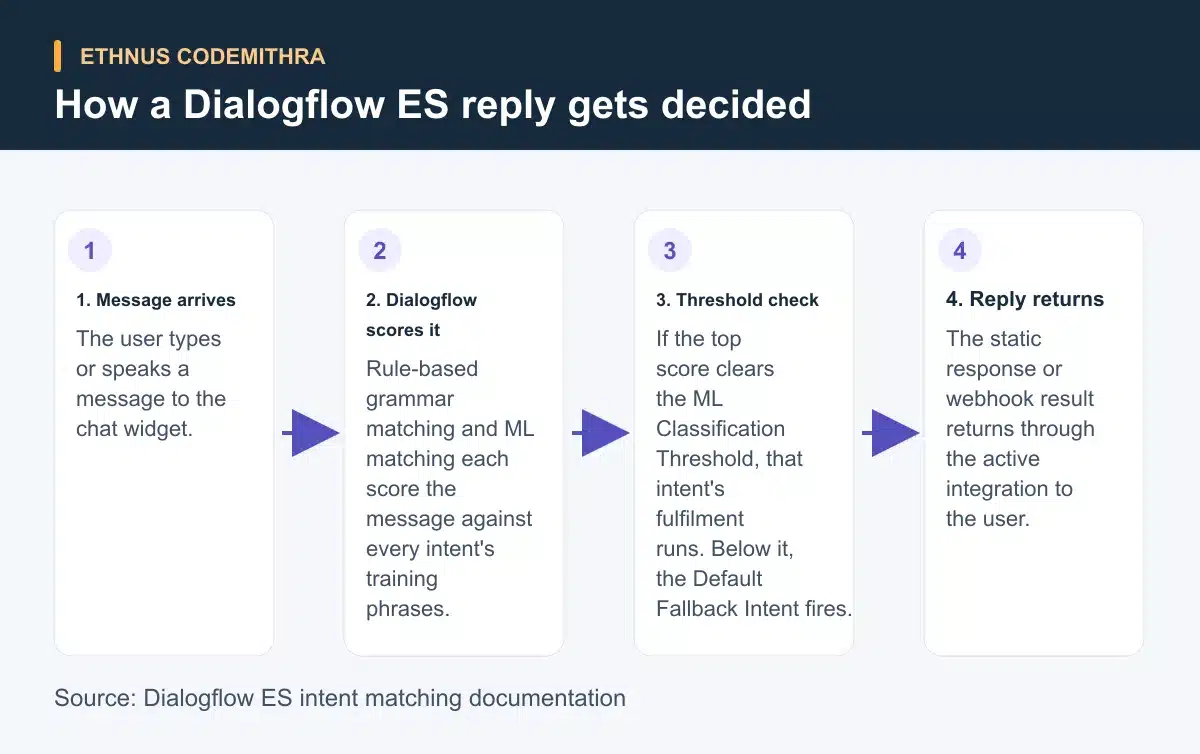
You do not need to type every possible wording. Dialogflow's built-in machine learning expands your list to cover similar phrases automatically. Underneath that, matching runs two processes together: rule-based grammar matching and ML matching. Each candidate intent gets an intent detection confidence score from 0.0 to 1.0. The top-scoring intent wins only if that score clears the agent's ML Classification Threshold. Below the threshold, the Default Fallback Intent fires instead. The diagram below shows the full path from message to reply.
Step 4: add responses and test
Scroll to the Responses section of your intent and add the text you want the bot to say back. Click Save. Use the Try it now panel on the right to type a few training phrases and confirm the intent fires. Then try a wording you did not train for. See whether it still matches or falls back.
Step 5: publish with Web Demo
Open Integrations and turn on Web Demo. Dialogflow generates an iframe snippet to embed on a page, and a direct link you can open in a browser. Keep one limit in mind before you rely on it: Web Demo only supports single text responses, and only in the agent's default language. Google recommends Dialogflow Messenger once you need rich messages, images or more than one language.
Going beyond static text: webhook fulfillment
A static response cannot look anything up or change based on who is asking. Webhook fulfillment fixes that. You enable "Enable webhook call for this intent" on the intent's Fulfillment section. Dialogflow then sends the matched intent to your own code instead of using the Responses tab text. Google's fulfillment quickstart uses this pattern, where each intent name maps to a handler function:
const functions = require('firebase-functions');
const { WebhookClient } = require('dialogflow-fulfillment');

exports.dialogflowFirebaseFulfillment = functions.https.onRequest((request, response) => {
  const agent = new WebhookClient({ request, response });

  function courseFees(agent) {
    agent.add('Fees depend on the program. Ask about MERN Full Stack or JaWEsome.');
  }

  let intentMap = new Map();
  intentMap.set('course-fees', courseFees);
  agent.handleRequest(intentMap);
});
Enabling webhook fulfillment overrides the static Responses tab for that intent. The handler function's reply is what the user actually sees.
Try this exercise today
Build one intent for a question you get asked often, such as "what does this course cover". Add five training phrases in different wordings and save a response. Test it in the Try it now panel with a sixth wording you did not type. If it matches, the ML expansion covered it. If it falls back, add that wording as a training phrase and retest. This single loop is the core skill behind every larger Dialogflow agent.
Where this fits into an Ethnus course project
This intent-training exercise mirrors the Gen AI exposure built into Codemithra's programs. The MERN Full Stack program lists syllabus additions including "Now includes Basics of Python and Gen AI" and "Basics of DevOps and Gen AI". The JaWEsome program covers "Basics of Python and Gen AI", plus exposure to AWS, cybersecurity, Salesforce and MERN stack development.
Both programs use the Codemithra Learning & Assessment Platform for module-based assignments. Both also offer trainer-led sessions for doubt clearing along the way. A chatbot like the one above is the kind of small, self-contained project that fits alongside that syllabus. See the full Codemithra course catalogue for both programs.
Frequently asked questions
Do I need to write code to finish this walkthrough?
No. Steps 1 to 5 use only the Dialogflow ES console. Code is only needed for the optional webhook fulfillment step, if you want a dynamic response instead of static text.
Why did my chatbot reply to a greeting I never trained?
Every new agent gets a Default Welcome Intent that ships pre-populated with common greeting phrases. It fires automatically when a conversation starts. That is separate from the ML matching used for your own custom intents.
Is Dialogflow ES the same as Dialogflow CX?
No. Dialogflow CX had its own console, which Google deprecated on 31 October 2025 in favour of the Conversational Agents console. Dialogflow ES, used in this guide, keeps a separate, current console.
Can I show images or buttons in the Web Demo widget?
No. Web Demo only supports single text responses in the agent's default language. Use Dialogflow Messenger if you need richer message types.
Does finishing this project mean I know Gen AI?
No. This builds an intent-based bot, one specific skill. Codemithra's MERN Full Stack and JaWEsome programs place a Gen AI introduction inside a broader syllabus. Both add trainer-led sessions and CLAP assessments.
Start with the MERN Full Stack program page to see where a project like this sits inside a full syllabus. Or browse the complete Codemithra course catalogue for other options.